
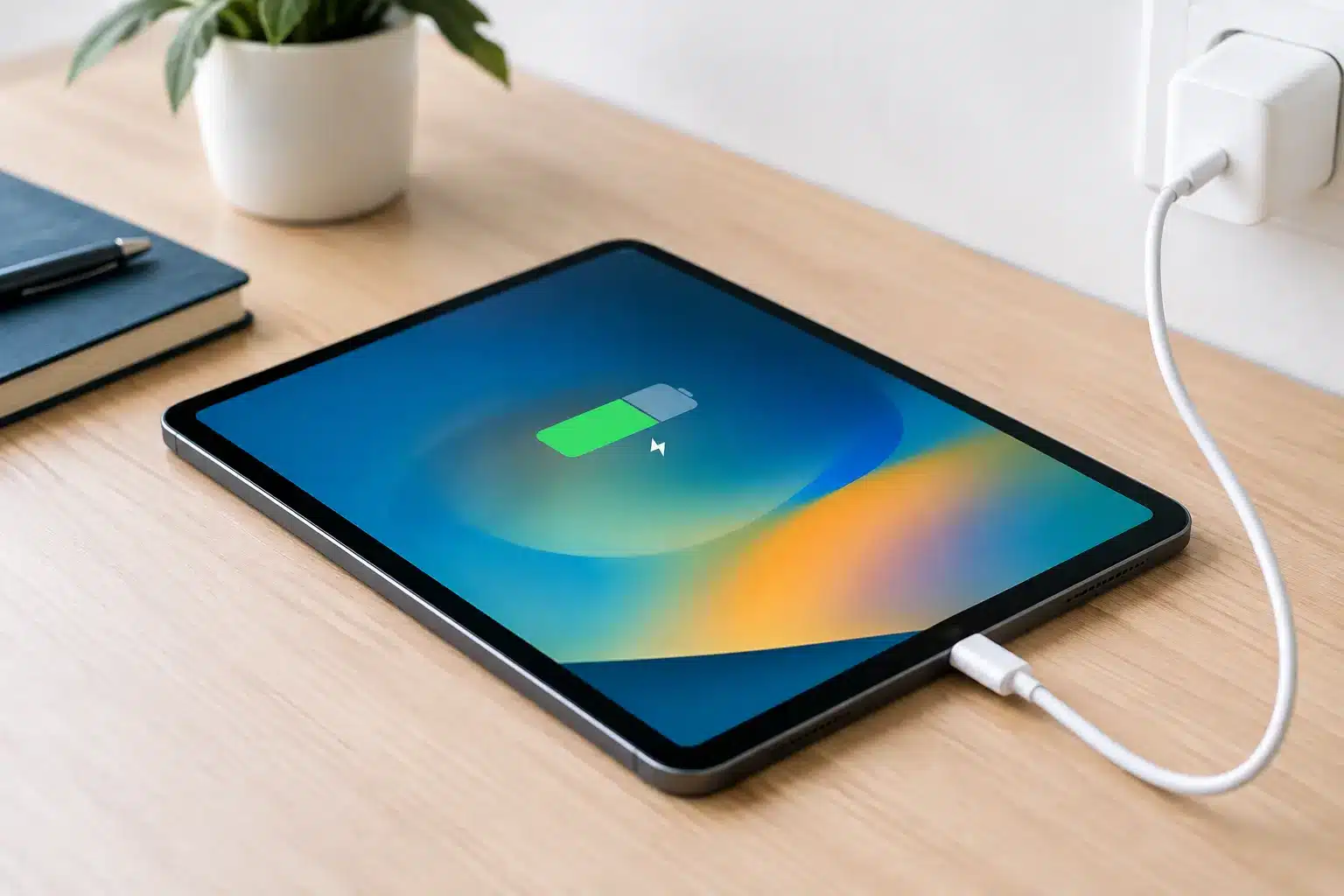
An iPad that will not charge can stop far more than a bit of screen time. It can interrupt coursework, shift notes, video calls, travel plans or a child’s evening routine. Before assuming the battery has failed, there are a few sensible checks that may solve the problem. Knowing how to fix iPad charging problems starts with ruling out the simple causes safely, then recognising when the fault needs professional attention.
Start with the charger, cable and socket
The charging lead and plug are the most common cause of an iPad that appears not to charge. Cables can fail internally even when the outer coating looks intact, particularly around the connector ends where they bend most often. A worn cable may work only at a certain angle, charge slowly, or repeatedly connect and disconnect.
Try a different cable and power adaptor that you know work properly with another device. Use a wall socket rather than a laptop USB port, extension lead or low-powered travel adaptor. iPads need more power than a phone, and some older or lower-output plugs cannot keep up, especially while the screen is on or the iPad is in use.
If your iPad uses USB-C, check that the cable supports charging and is not only intended for data transfer. With Lightning models, look closely at the connector for dark marks, bent contacts or damage to the metal tip. Do not keep forcing a damaged connector into the iPad. It can turn a cable replacement into a port repair.
Check whether the iPad is actually charging
A completely flat iPad may not show any response straight away. Leave it connected to a reliable wall charger for at least 30 minutes before deciding it is not charging. If the battery has drained deeply, the display may remain black for a short period before the charging symbol appears.
Watch for the small lightning bolt in the battery icon, a charging sound or vibration, or a change in the battery percentage. If the percentage stays still while the iPad is being used, it may be receiving some power but not enough to recharge. This is often caused by an underpowered plug, poor cable or demanding use such as gaming, video streaming or a video call.
It is also worth restarting the iPad once it has had time on charge. A software process can occasionally prevent the battery display from updating correctly. Restarting is a safe first step, but it will not repair a loose port, damaged battery or failed charging component.
Clean the charging port carefully
Pockets, bags and kitchens are full of lint, dust and tiny debris. Over time, compacted fluff can sit at the bottom of an iPad charging port and stop the cable clicking fully into place. The cable may seem connected but lose contact with the pins needed to charge.
Turn the iPad off and use a bright light to inspect the port. If you can see debris, use a dry, non-metal tool such as a plastic pick or a soft anti-static brush to lift it out gently. Work slowly and avoid pushing material further down. Never use a pin, paperclip, knife or anything conductive. The contacts inside the port are delicate and easily damaged.
Do not spray cleaning fluid, compressed air or water into the port. Liquid can leave residue or drive moisture further inside the device. If there is a liquid warning, visible corrosion, or the iPad was recently exposed to rain, a spill or high humidity, disconnect it and arrange a proper inspection. Charging a wet device can cause further damage.
A loose cable is not always just dirt
If a clean, known-good cable still feels loose, falls out easily or only charges when held in one position, the port itself may be worn or damaged. This can happen after repeated strain on the cable, accidental knocks or use of connectors that have been forced into the port. Continuing to wiggle the cable to find a charging position usually makes the problem worse.
Update software and rule out heat
Software is not the usual explanation for a genuine no-charge fault, but it can affect how an iPad behaves. If the device turns on and holds enough charge, install the latest available iPadOS update after backing up your important data. An update can resolve unusual battery reporting or charging management issues.
Temperature matters too. iPads may pause charging when they are too hot or too cold to protect the battery. Remove a thick case, move the device away from direct sunlight or a radiator, and let it return to room temperature before trying again. Charging on bedding, sofas or other soft surfaces can trap heat, so use a hard, clear surface instead.
If the iPad gets very hot whenever a charger is connected, smells unusual, or has a screen lifting away from the frame, stop charging it. These can be signs of a swollen or failing battery. Do not press the screen back down or continue using the device until it has been assessed.
When an iPad charging problem needs a repair
Once you have tested a good charger, cleaned the port safely and allowed time for a flat battery to recover, a continuing fault is likely to be inside the iPad. The right repair depends on the symptoms, which is why a diagnosis is more useful than guessing at a battery replacement.
A battery may be the issue when the iPad charges but drains very quickly, shuts down at a higher percentage, or has noticeably reduced runtime after several years of use. Batteries are consumable components, and their capacity naturally falls over time. A replacement can restore dependable everyday use, but only if the charging circuit and port are working correctly.
A charging port fault is more likely when the cable will not sit securely, the iPad only charges at an angle, or no cable works despite the device otherwise functioning normally. On many iPad models, the port is part of a more involved internal repair than on an iPhone. The screen and internal components must be handled carefully, so this is not a job for household tools or a cheap repair kit.
In other cases, the problem is on the charging circuit or main board. This may follow liquid exposure, a drop, use of a poor-quality charger, or a power surge. Symptoms can include no response from several known-good chargers, rapid heat build-up, or an iPad that shows it is charging but never gains battery percentage. Board-level faults need proper testing before any repair is recommended.
Protect your data before handing it over
If the iPad still turns on, back it up before a repair where possible. Use iCloud or a computer, depending on your usual setup. A charging repair should not require your data to be erased, but a current backup is sensible whenever a device has a hardware fault.
Make a note of what happened before the problem began. Did the iPad stop charging after a drop, a spill or an update? Does it charge with one cable but not another? Does the connector feel loose? These details help a technician narrow down the fault faster and give you a clearer idea of the likely repair and cost.
Avoid leaving the iPad on charge overnight if it is cutting in and out, overheating or showing signs of battery swelling. There is a difference between a device that simply needs a better cable and one that needs to be taken off charge for safety.
Local help for iPad charging faults in Portsmouth
If the basic checks have not fixed the issue, an in-person diagnosis is usually the quickest route to an answer. At iHelp Gadget Repairs in Southsea, you deal directly with Dan, so there is no call-centre handover or device being posted away before anyone can inspect it. The aim is straightforward: identify whether the problem is the battery, port, charging system or something simpler, explain the options clearly, and only recommend work that makes sense for the iPad.
A reliable iPad should charge without being held at a particular angle, without overheating and without making you wonder whether it will have enough power for tomorrow. Getting the fault checked early can often prevent a small charging issue from becoming a larger interruption.