
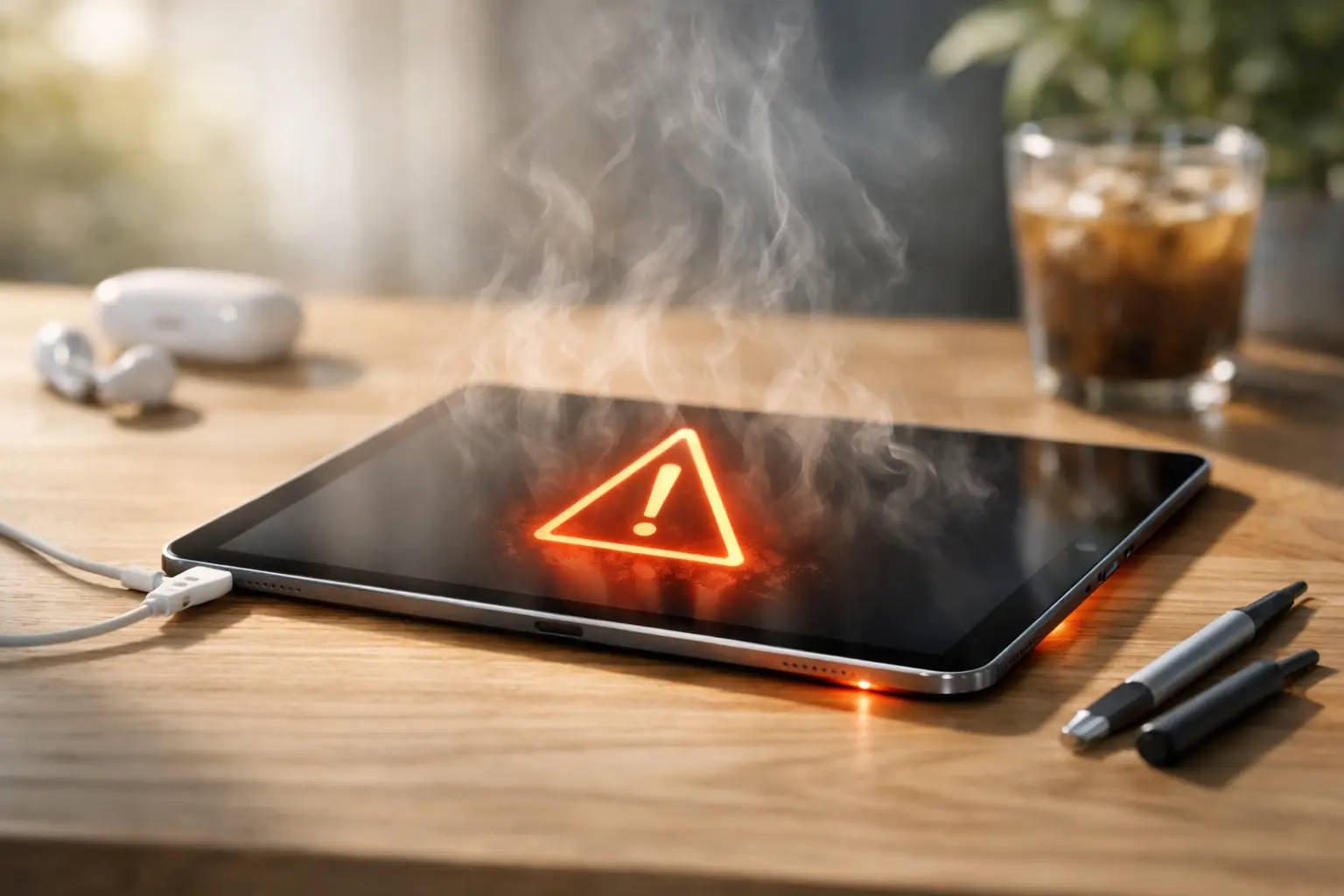
Your iPad is meant to get a little warm while charging, streaming a film or running a demanding game. It should not become uncomfortable to hold, repeatedly dim its screen, stop charging or show a temperature warning. If you are asking, “why is my iPad overheating?”, the answer may be as simple as direct sunlight or a demanding app – but persistent heat can also point to a battery, charging or internal hardware fault.
When an iPad is warm versus genuinely overheating
A warm back panel after an hour of video calls, navigation, photo editing or gaming is usually normal. The processor, battery and display are all working hard, and there is limited room inside an iPad for heat to escape. A warm iPad that cools down once you stop using it is rarely a cause for concern.
Overheating is different. You may notice the display becoming noticeably dim, apps slowing down or closing, charging pausing, or a message saying the iPad needs to cool down before it can be used. These are protective measures designed to prevent damage to the battery and other components.
If it happens regularly during ordinary use, such as checking emails on the sofa, it is worth investigating rather than simply putting up with it.
Why is my iPad overheating during everyday use?
Heavy apps and background activity
Games with detailed graphics, video editing, long video calls and streaming can all push the processor hard. An iPad may also be busy in the background after an iPadOS update, restoring from a backup, synchronising large photo libraries or downloading files. This is particularly common on a newly set-up device.
Give it some time, close apps you are no longer using and see whether the heat settles. If the iPad becomes hot every time you use one particular app, update that app or remove and reinstall it. The app may be poorly optimised or stuck in a background loop.
Heat from the environment
A sunny car, a windowsill, the beach or even a warm kitchen can quickly raise an iPad’s temperature. Direct sunlight heats the screen and metal casing while the device continues trying to work normally. A thick cover can make matters worse by trapping heat around the back of the iPad.
This is one of the most common and easiest causes to rule out. Move the iPad into a cool, shaded room and remove the case while it cools. Do not leave it in a parked car, even for a short time.
Charging problems
Some warmth while charging is expected, especially with a fast charger. However, excessive heat, a burning smell, a loose connection or a charger that becomes very hot are warning signs. A damaged cable, poor-quality plug or worn charging port can create extra resistance and heat.
Use a reliable, correctly rated charging cable and plug. Check the cable for exposed wires, bent connectors or discolouration, and look carefully inside the charging port for compacted lint or damage. Never force a cable into the port. If the iPad only overheats while connected to power, stop using that charger until the cause has been checked.
An ageing or damaged battery
Lithium batteries naturally wear down over time. As a battery ages, it can become less efficient and generate more heat under load. This may be more noticeable when charging, gaming or using mobile data. Physical damage, previous liquid exposure and non-standard replacement parts can also affect battery performance.
A failing battery is not something to ignore. If the screen is lifting away from the frame, the back looks uneven, the battery drains unusually quickly or the iPad gets hot while idle, switch it off and arrange a professional inspection. A swollen battery can put pressure on the display and needs careful handling.
Software faults and poor signal
An out-of-date operating system or a software glitch can sometimes keep processes running when they should have stopped. Similarly, an iPad with mobile data may work harder to maintain a weak signal, particularly in areas with patchy coverage. That extra effort can cause heat and faster battery drain.
Restarting the iPad is a sensible first step. Then check for available iPadOS updates and make sure you have enough free storage for the device to run properly. If overheating began immediately after a major update, allow a day or two for background tasks to complete before assuming there is a fault.
How to cool down an overheating iPad safely
First, stop charging the iPad and disconnect any accessories. Move it away from sunlight, heaters and warm surfaces, then remove its case. Turn the screen off, close demanding apps and leave the device in a cool, dry place for at least 15 to 30 minutes.
If it is very hot or displays a temperature warning, switch it off and let it return to room temperature naturally. Do not continue using it simply because it starts responding again. Repeatedly pushing an overheated device can shorten battery life and may worsen an underlying problem.
Avoid the tempting quick fixes. Do not put an iPad in a fridge or freezer, place it against an ice pack, spray it with anything or cool it with a damp cloth. Sudden temperature changes can cause condensation inside the device, creating a second and potentially more expensive fault.
Once it has cooled, restart it and use it normally for a short period without charging. This helps narrow down the cause. If it stays cool until you plug it in, the cable, plug, port or battery deserves closer attention. If it heats up only when running a particular game or app, software or workload is more likely to be the issue.
Small changes that can prevent repeat overheating
Lowering screen brightness, avoiding lengthy gaming sessions while charging and keeping the iPad out of direct sun can make a real difference. It also helps to remove bulky cases for demanding tasks, especially if you use the iPad for work, study or entertainment for several hours at a time.
Keep iPadOS and your regularly used apps updated, but do not install updates when the device is already hot. Use quality charging equipment, avoid damaged cables and do not charge the iPad under a pillow, duvet or stack of papers where heat cannot escape.
If your iPad has a mobile connection, try Wi-Fi where possible in areas with poor signal. You can also switch off mobile data temporarily to see whether the heat improves. That does not repair a fault, but it can reveal whether network activity is contributing to the problem.
When an overheating iPad needs a repair check
Arrange a diagnostic if the iPad overheats while sitting idle, gets hot with multiple chargers, stops charging, restarts without warning or shows a temperature alert more than once. You should also seek help promptly if there has been a drop, water exposure, a damaged charging port or any sign of battery swelling.
An experienced technician can check the battery condition, charging circuit, port, internal connections and signs of liquid damage. This is more useful than replacing parts by guesswork, particularly with iPads where the battery, display and charging components are tightly integrated.
For Portsmouth and Southsea customers, iHelp Gadget Repairs can assess the fault directly and explain what has been found before work begins. The aim is a clear diagnosis and an honest repair recommendation, not an unnecessary replacement.
A single warm spell after a long video call is usually just your iPad doing hard work. Heat that keeps returning, especially during charging or light use, is your cue to stop relying on quick fixes and have the device properly checked.