
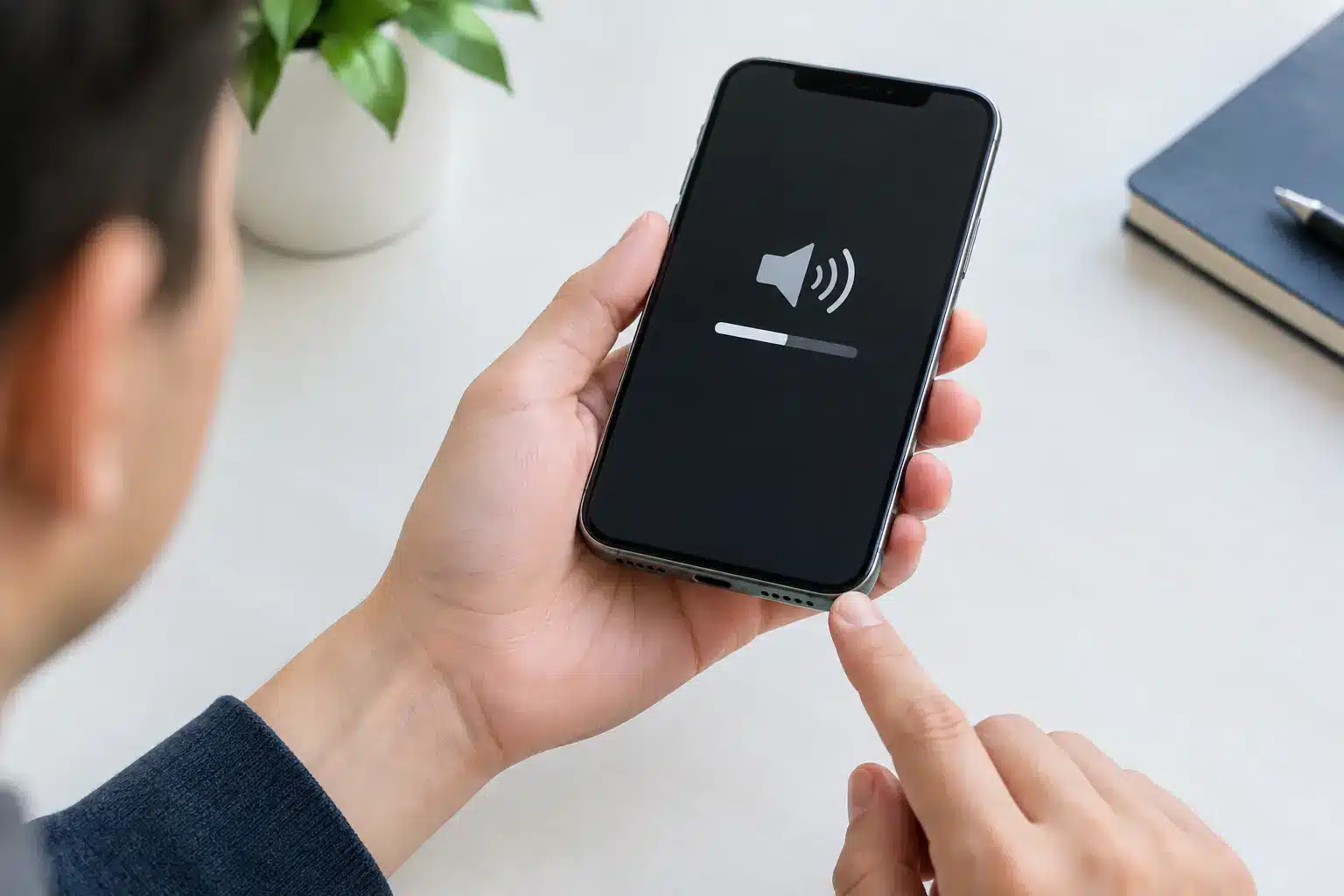
A speaker fault can make an iPhone feel far less useful very quickly. Calls become difficult to hear, alarms lose their point, and videos sound thin or silent. Before you try to fix iPhone speaker issues yourself, it helps to identify which speaker is affected and rule out the simple causes that do not need a repair.
Most iPhones have more than one speaker function. The earpiece at the top is used for normal phone calls, while the lower speaker handles ringtone, music, videos and hands-free calls. A problem with one does not always mean the other has failed. That distinction can save time and prevent unnecessary work.
Check which iPhone speaker has stopped working
Start with a quick test. Play a song or video and turn the volume up using the side buttons. If sound is weak or absent from the bottom of the phone, the loudspeaker may be obstructed, damaged or affected by a software setting.
Then make a normal phone call and hold the iPhone to your ear. If the caller sounds muffled or very quiet but loudspeaker mode works normally, the issue is more likely to be with the top earpiece speaker or its fine protective mesh.
It is also worth checking whether the sound is distorted, intermittent or completely gone. Crackling after a drop, for example, points more towards physical damage. Sound that comes and goes after the phone has been in a pocket, bag or damp environment may be caused by debris or moisture around the speaker grille.
How to fix iPhone speaker problems safely
A few careful checks can solve common sound problems without taking the phone apart. The key word is careful. iPhone speaker meshes are delicate, and pushing tools into them can turn a minor blockage into a repair job.
Check volume, Silent mode and audio output
Make sure the media volume is turned up while a video or song is actually playing. The ringtone volume and media volume are separate, so raising one does not always raise the other.
Check the Ring/Silent switch on older iPhones, or the Action button settings on newer models. Silent mode should not stop music or video audio, but it can explain missed call sounds and alerts.
Next, open Control Centre and check the audio output. An iPhone can remain connected to Bluetooth earphones, a car system, a speaker or another device even when it is no longer nearby. If audio is being sent elsewhere, the phone’s own speaker may appear faulty. Turn Bluetooth off temporarily and test again.
Remove the case and inspect the speaker grilles
A poorly fitted case, screen protector or pocket debris can block the earpiece or lower speaker openings. Remove the case, then inspect the grilles in good light. Dust, makeup, lint and compacted dirt are common, particularly around the earpiece.
Use a clean, dry, soft-bristled brush and lightly brush across the grille. Do not use pins, needles, paper clips or anything sharp. Avoid liquids, sprays and compressed air too. High-pressure air can force debris or moisture further inside the device, while liquid cleaners can damage the speaker or nearby components.
If the lower speaker appears quieter on one side of the charging port, remember that not every opening is necessarily a speaker. On many iPhone models, one side contains a microphone. This is normal design, not a missing speaker.
Restart and update the iPhone
Restarting the phone is a simple but worthwhile check when sound has disappeared unexpectedly. It clears temporary software errors and reconnects services that manage audio.
After restarting, test a ringtone, a video, a phone call and speakerphone. If the issue only happens in one app, look for an app update or check that app’s own sound settings. If it affects every type of audio, the cause is more likely to be system-wide or hardware-related.
Installing the latest suitable iOS update can also help where an audio problem began after a software change. However, an update will not repair a speaker damaged by impact, corrosion or a failed internal component.
Check for moisture before charging or testing repeatedly
If the iPhone has been exposed to rain, a spill, steam or a damp pocket, stop trying to force sound through the speaker. Water can make audio quiet, distorted or crackly while it sits behind the mesh.
Remove the case, keep the phone with the speaker facing down in a dry, ventilated room, and allow time for it to dry naturally. Do not put it in rice, on a radiator or use a hairdryer. Rice does not reliably remove moisture from inside a phone, and heat can cause further damage.
If the sound remains affected after drying, or the phone shows a liquid-detection warning, professional inspection is the sensible next step. Moisture damage can worsen gradually, even if the phone appears to work at first.
Signs the speaker needs professional repair
Home checks are useful for settings and surface dirt. They cannot safely address a torn speaker, damaged flex cable, corroded connection or fault on the logic board. An iPhone that has been dropped, bent, exposed to liquid or previously repaired may need a proper diagnosis rather than more cleaning.
Book a repair assessment if the speaker crackles at any volume, produces no sound after the basic checks, only works intermittently, or sounds permanently muffled despite a clean grille. The same applies if people cannot hear you on calls, as that may be a microphone issue rather than a speaker fault.
A fault after a screen replacement can be more complicated. The earpiece assembly and sensors sit close to the screen, and incorrect fitting or damaged components can affect call audio. This is not a job for glue, online cleaning gadgets or trial-and-error dismantling. Modern iPhones contain small, tightly fitted parts, and opening one without the right tools can damage the screen, battery seal or Face ID components.
What happens during an iPhone speaker repair?
A good repair starts with diagnosis, not assumptions. The technician should test the earpiece, loudspeaker, microphone, charging port functions, Bluetooth output and call audio to identify the actual fault. This matters because a blocked grille, failed loudspeaker and audio-board problem can feel similar to the person using the phone, but they require very different repairs.
Once the cause is confirmed, you should receive clear advice on the work needed and the price before it goes ahead. In many cases, speaker repairs are straightforward and can be completed far faster than sending a device away. More involved liquid or board-level faults may take longer, depending on the damage and parts required.
At iHelp Gadget Repairs in Southsea, you deal directly with Dan from the first enquiry through to repair. That means you can explain exactly what happened to the phone, ask questions about the diagnosis and get a clear answer about the best next step. Quality parts and warranty-backed work matter, especially when your iPhone is needed for work, study, family calls or day-to-day travel around Portsmouth.
Avoid turning a sound fault into a bigger repair
The temptation to keep poking, scraping and spraying at a quiet speaker is understandable. It is also one of the easiest ways to damage the mesh, push debris deeper inside or expose the phone to moisture. If gentle cleaning, a restart and an audio-output check do not restore normal sound, stop there.
Your iPhone does not need to stay silent while you wait for a mail-in repair or struggle with a DIY fix. A local diagnosis can establish whether the problem is a simple blockage, a failed speaker or something more involved, so you can make a sensible decision with the facts in front of you.