
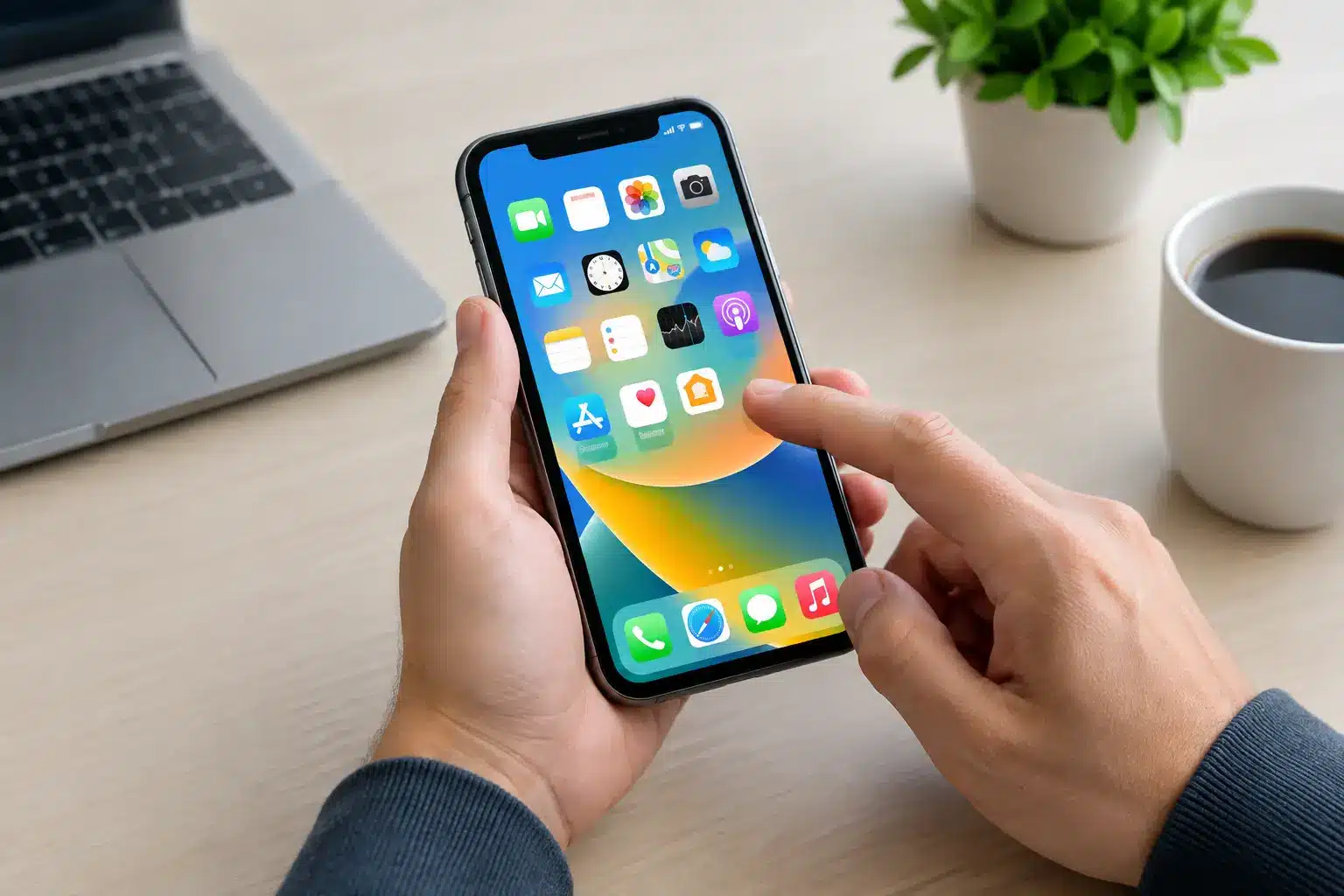
A missed alarm, a frozen payment screen or a phone that will not answer a call can quickly turn a small fault into a major inconvenience. If you are asking, why is iPhone screen unresponsive, the cause may be as simple as a dirty display or temporary software glitch. It can also point to damage beneath the glass, especially after a drop or contact with moisture.
The useful first step is working out whether the whole screen has stopped responding, only part of it is affected, or the phone itself has frozen. That distinction helps you avoid unnecessary fixes and makes it easier to decide when a professional repair is the sensible option.
Why is an iPhone screen unresponsive?
Your iPhone’s touchscreen relies on a thin touch-sensitive layer beneath the glass. When you tap, swipe or type, that layer detects changes in electrical charge and sends the instruction to the phone. A fault anywhere in that chain – the screen, internal connectors, software or the phone’s logic board – can make the display feel slow, erratic or completely unresponsive.
A screen that looks perfect can still have a touch fault. Equally, a cracked screen may continue to work for days before the touch layer begins failing. The timing matters. If the problem started immediately after a drop, knock, previous repair or liquid exposure, hardware damage becomes more likely. If it appeared after an iOS update or while one app was open, software is a more realistic starting point.
Start with the simple checks
Before assuming the screen needs replacing, remove any case and screen protector. A thick, poorly fitted or damaged protector can interfere with touch input, particularly around the edges of the display. Wipe the screen with a clean, dry microfibre cloth and make sure your hands are dry too. Water, grease and heavy dirt can make an iPhone screen behave unpredictably.
If the issue happens only while the phone is charging, unplug the cable and try again. A damaged cable, poor-quality plug or faulty charging source can sometimes cause touch interference. Use a known good cable and plug rather than continuing with an accessory that is visibly worn or unreliable.
Also check whether the problem is limited to one app. Close the app if you can, then test the Home Screen, keyboard and Settings. If touch works everywhere else, the app may need updating or reinstalling rather than the iPhone needing a screen repair.
Force restart the iPhone
When the display is on but will not respond, a force restart can clear a temporary system freeze. This does not erase your photos, messages or apps.
On an iPhone 8, iPhone SE second generation or later, and Face ID models, quickly press and release Volume Up, quickly press and release Volume Down, then press and hold the Side button. Keep holding until the Apple logo appears.
On an iPhone 7 or 7 Plus, press and hold the Side button and Volume Down button together until you see the Apple logo. On an iPhone 6s, iPhone SE first generation or earlier, press and hold the Home button and Side or Top button together.
Give the phone a minute or two after it restarts. If the screen is responsive again, check for an iOS update when convenient and keep an eye on whether the fault returns. A one-off freeze is different from a repeating issue that appears every day.
Signs the fault is likely to be hardware
A force restart will not repair a damaged display. The following symptoms usually deserve a closer inspection from a repair specialist:
- Parts of the screen do not register touch, such as a strip down one side or the top of the keyboard.
- The display taps things by itself, often called ghost touch.
- The screen works only when pressed in a certain place or held at a particular angle.
- The image flickers, shows lines, has dark patches or remains black while the phone still rings or vibrates.
- Touch stopped working after a drop, bend, liquid exposure or a previous screen replacement.
Ghost touch is particularly frustrating because the phone can enter the wrong passcode repeatedly, open apps or make calls without you touching it. Avoid repeatedly trying to use a phone in this state. If it starts entering passcodes on its own, switch it off if possible to reduce the risk of being locked out.
Cracks are not just a cosmetic problem
A small crack may seem manageable, but it can allow further pressure and moisture into the display assembly. The visible glass, display panel and touch layer work closely together. Once the underlying touch layer is compromised, the phone may register no touch at all, miss taps or react in the wrong place.
The correct repair is not always obvious from the outside. An iPhone may need a replacement screen, but a hard impact can also loosen an internal connector or damage other components. This is why a proper diagnosis matters more than simply fitting the cheapest available part.
Quality also matters with replacement screens. Lower-grade parts can affect brightness, colour, touch accuracy and battery performance. On compatible models, they may also cause warnings about a non-genuine display. A reputable repairer should explain the available part options clearly, including the warranty, expected performance and price before work begins.
What if the iPhone has been near water?
Even water-resistant iPhones are not waterproof. Their resistance can reduce over time, particularly after wear, impact or previous opening. Rain, a spilled drink, steam and a wet pocket can all cause trouble.
If the screen becomes unresponsive after moisture exposure, disconnect any charging cable and do not try to dry the phone with heat. Hairdryers, radiators and rice are not reliable fixes, and heat can make internal damage worse. Do not keep charging it in the hope that it will come back to life.
Instead, switch the phone off if you can and arrange an assessment promptly. Corrosion can spread after the initial incident, so the sooner the device is checked, the better the chance of preventing a more costly fault.
Can software be the cause?
Yes, particularly when the whole phone appears to freeze but there has been no physical damage. Storage that is almost full, a failed update, a buggy app or an iOS issue can all affect normal performance.
After a successful restart, check available storage in Settings if the phone allows it. Delete unneeded downloads and apps, then update iOS when you have a stable Wi-Fi connection and enough battery. Backing up the phone is worthwhile before any major update or reset, especially if touch is becoming intermittent.
A factory reset is best treated as a last software step, not the first response to an unresponsive display. It can rule out software corruption, but it will not fix damaged hardware and it risks data loss if you do not have a current backup. If the phone was dropped or the fault affects only a section of the screen, diagnosis is usually more useful than resetting it.
When to arrange an iPhone screen repair
Book a repair assessment when touch problems keep returning, part of the display is dead, the screen is cracked, or the issue began after an accident. If your iPhone contains work documents, family photos, banking access or travel details, acting early can save a lot of disruption.
For Portsmouth and Southsea customers, iHelp Gadget Repairs offers direct, local diagnostics and many iPhone screen repairs can be completed in under 30 minutes. You deal with Dan from the first enquiry through to the completed repair, with clear pricing and a 12-month warranty, plus a lifetime warranty on iPhone screen repairs.
Do not put up with a phone that only works when it feels like it. A quick check can separate a simple software hiccup from a screen fault that needs attention, and getting the right diagnosis early is usually the fastest route back to a reliable iPhone.