
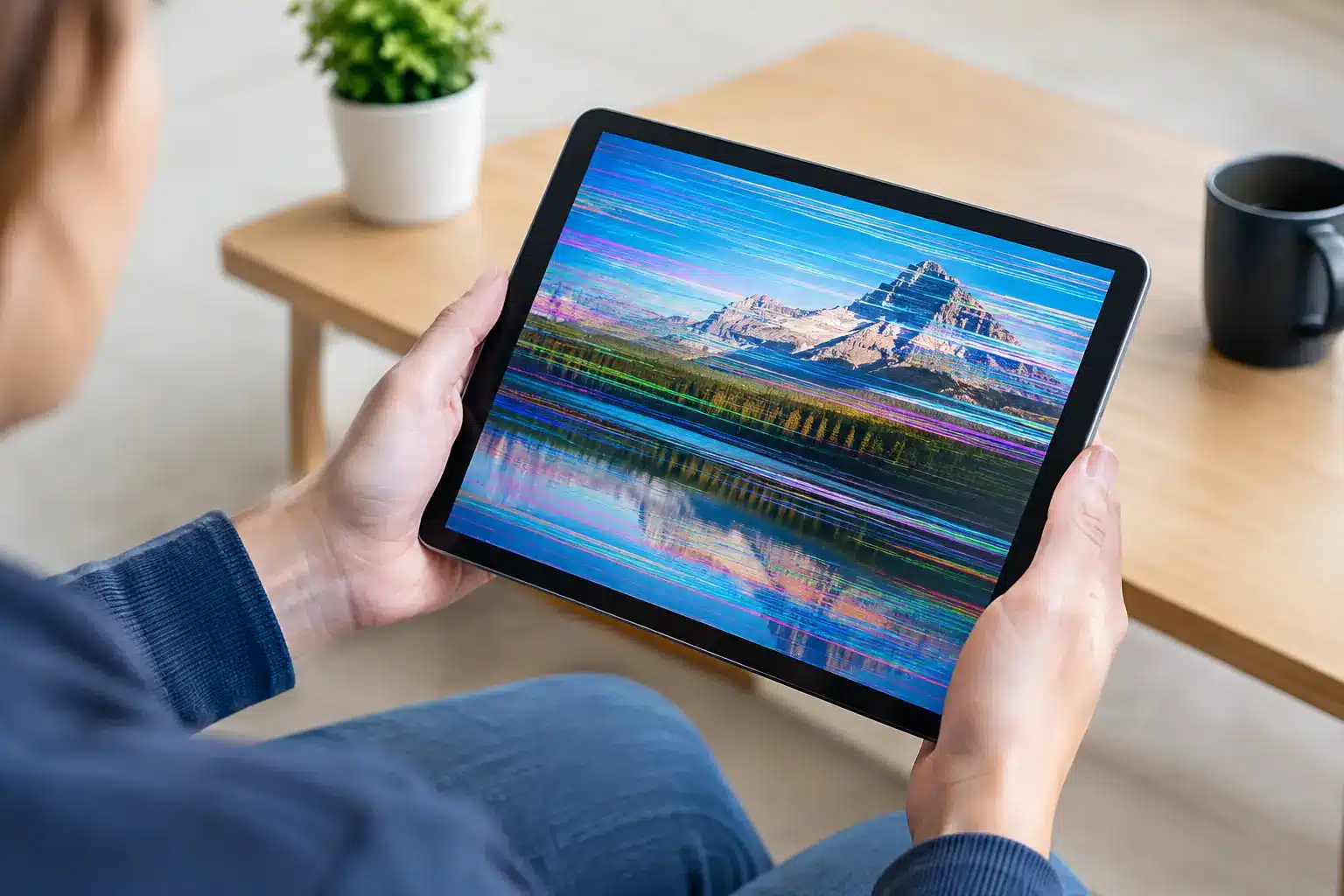
A tablet that flashes, pulses or briefly goes black can make simple jobs feel impossible, whether you are trying to finish coursework, join a video call or keep a child entertained. If you are asking, “why is tablet screen flickering?”, the answer can range from a minor software setting to a damaged display or internal connection that needs attention.
The useful first step is to notice when the flickering happens. Does it start only while charging, after the tablet has been dropped, at low brightness, or all the time? Those details help separate a quick fix from a fault that should be inspected professionally.
Why is a tablet screen flickering?
Flickering is usually caused by one of four areas: software, power, the display itself, or a connection inside the tablet. The screen is not always the part at fault, which is why replacing it without a proper diagnosis can be a costly guess.
A brief flicker after an app update or while opening one particular app is more likely to be software-related. Constant lines, flashing patches, ghost touches or a display that changes when you gently move the device can point towards physical damage. If the issue only appears on charge, the charger, cable or charging port may be involved.
A software glitch or recent update
Tablets occasionally develop display problems after an operating system update, an app installation or a crash. A temporary bug can affect brightness control, screen refresh behaviour or the way an app draws on the display.
Start with a normal restart. It sounds simple, but it clears many temporary faults. Then check whether your tablet has a pending system update. Manufacturers regularly release fixes for known display and stability problems.
If the flickering only happens in one app, update that app or remove and reinstall it. You can also try using the tablet in Safe Mode, where available. If the screen behaves normally in Safe Mode, a downloaded app is likely causing the problem rather than the screen hardware.
Before resetting a tablet to factory settings, back up photos, documents and messages. A factory reset can rule out software corruption, but it should be a last software step rather than the first thing you try.
Brightness, accessibility and display settings
Some tablets flicker most noticeably at low brightness. This can be linked to the way the display reduces light output, particularly on certain OLED screens. Auto-brightness, adaptive brightness, night mode, colour filters and extra-dim settings can also make an existing issue more obvious.
Try turning off automatic brightness and set the brightness manually to around halfway. Disable any colour filters or eye-comfort modes temporarily. If the flickering disappears at a particular brightness level but returns at another, make a note of it. It may be manageable in the short term, but it can still indicate a weakening display.
Do not assume a dim-screen flicker is always harmless. If it has become progressively worse, follows impact damage or is accompanied by coloured lines, the display may be failing.
A charger, cable or power problem
A poor-quality charger, damaged cable or loose charging port can cause screen interference. You may see the display flash, jump or register touches while the tablet is plugged in, only for it to settle once unplugged.
Test with a known-good, suitable charger and cable. Avoid very cheap, unbranded charging accessories, especially if they become hot or cause the tablet to behave erratically. Check the charging port for visible fluff or debris, but do not force metal objects into it. A damaged port needs careful cleaning or repair, not aggressive poking.
If your tablet flickers both on and off charge, power may not be the only issue. It is still worth mentioning the charging pattern when arranging a diagnostic, as it can speed up fault-finding.
When tablet screen flickering points to hardware damage
A cracked tablet screen does not always fail immediately. The glass may look mostly intact while the display panel underneath has been damaged. A drop, bend, pressure in a bag, or a knock against a hard surface can affect the screen, digitiser or flex cable inside.
Common signs of a hardware display fault include vertical or horizontal lines, black blotches, coloured patches, a screen that flickers when the tablet is moved, or touch areas that no longer respond properly. A display may also fade to black but remain faintly lit, which can suggest a backlight fault on some models.
Water exposure is another possibility. Even if a tablet was not fully submerged, moisture from a spill, rain or a damp bag can reach internal connectors. The symptoms may appear hours or days later. Do not charge a device you suspect has liquid damage, as powering it can make corrosion or a short circuit worse.
A swollen battery can also affect the screen. If the display is lifting away from the frame, the back cover is separating or the tablet feels unusually warm, stop using it and arrange an inspection promptly. Do not press the screen back into place.
Loose or damaged internal connections
Inside a tablet, the screen connects to the main board with delicate flex cables. A hard knock or previous poor-quality repair can loosen or damage these connections. The screen may then work intermittently, flicker when pressure is applied, or fail altogether.
This is not a sensible DIY repair for most people. Tablets are tightly assembled, and opening one without the correct tools can crack the display further, damage the battery or compromise seals and adhesive. A technician should inspect the connection and test the display before recommending a repair.
Ageing screens and failing components
Like any electronic part, displays wear over time. Older tablets can develop flickering because the panel, backlight circuitry or display controller is beginning to fail. The fault may start as a small occasional flash, then become more frequent.
Whether repair is worthwhile depends on the model, its age, storage capacity and overall condition. A newer tablet with a good battery may be well worth repairing. For a much older model with several faults, honest advice may be that replacement offers better value. A proper diagnosis gives you the information needed to decide rather than paying for a repair based on guesswork.
Safe checks to make before booking a repair
There are a few sensible checks you can make without taking risks. Restart the tablet, install available updates and try a different compatible charger if flickering happens while charging. Remove a case or screen protector if it is lifting, badly cracked or pressing on the display edge.
Take note of whether the fault appears on the lock screen as well as inside apps. If it flickers before you enter your passcode, it is less likely to be caused by one app. If you can, take a short video of the issue using another device. Intermittent faults have a habit of disappearing at the wrong moment, and a video can help explain exactly what you have seen.
Back up the tablet while it is still usable. Screen faults can deteriorate quickly, particularly after impact or liquid exposure. Keeping a current backup protects the photos and files that matter most if the display stops working altogether.
Avoid pressing, twisting or repeatedly tapping the screen to make it behave. It may seem to help for a moment, but pressure can turn a loose connection or small display fault into a complete failure.
When to get professional help
Book a diagnostic if the flickering persists after a restart and software update, if the screen is physically damaged, or if the issue is getting worse. Urgent attention is sensible where there is heat, battery swelling, liquid exposure, black patches, bright lines or a screen lifting from the frame.
For customers in Southsea and Portsmouth, iHelp Gadget Repairs can assess whether the fault is caused by the display, battery, charging system or an internal connection. You will get a clear explanation of the problem and the repair options before work goes ahead, rather than being pushed towards a screen replacement that may not solve it.
A flickering screen is frustrating, but it is also useful evidence. Notice the pattern, protect your data and have the tablet checked before a small, intermittent fault becomes the reason you cannot use it at all.